Does your organization still use manual procedures to set up cloud infrastructure? If so, this approach may be preventing you from moving forward, but you’re most certainly not alone. Infrastructure as Code (IaC) is proving to be a crucial tool for businesses seeking to keep pace with the complex and rapidly evolving cloud environment.
According to Gartner, Infrastructure as code, or IaC, is quickly becoming indispensable, with over half of enterprises implementing IaC by 2025 to increase cloud automation, productivity, and governance. In the age of cloud computing, companies are depending more and more on scalable and flexible infrastructure to deploy apps and services effectively and swiftly. Traditional manual infrastructure provisioning through cloud provider consoles or scripts is often slow, prone to errors, and difficult to replicate reliably across different environments. This makes infrastructure scaling and maintenance challenging, especially in dynamic DevOps workflows.
There is no business strategy without a cloud strategy,” as stated by Milind Govekarv, a renowned cloud strategy thought leader and Vice President at Gartner. This highlights how important it is to manage cloud infrastructure in an automated, secure, and integrated way so that companies can prosper in the quickly changing digital market. Firm cloud cybersecurity procedures that ensure operations remain safe and flexible during rapid digital changes are prioritized by organizations such as Auxin Security in response to this awareness.
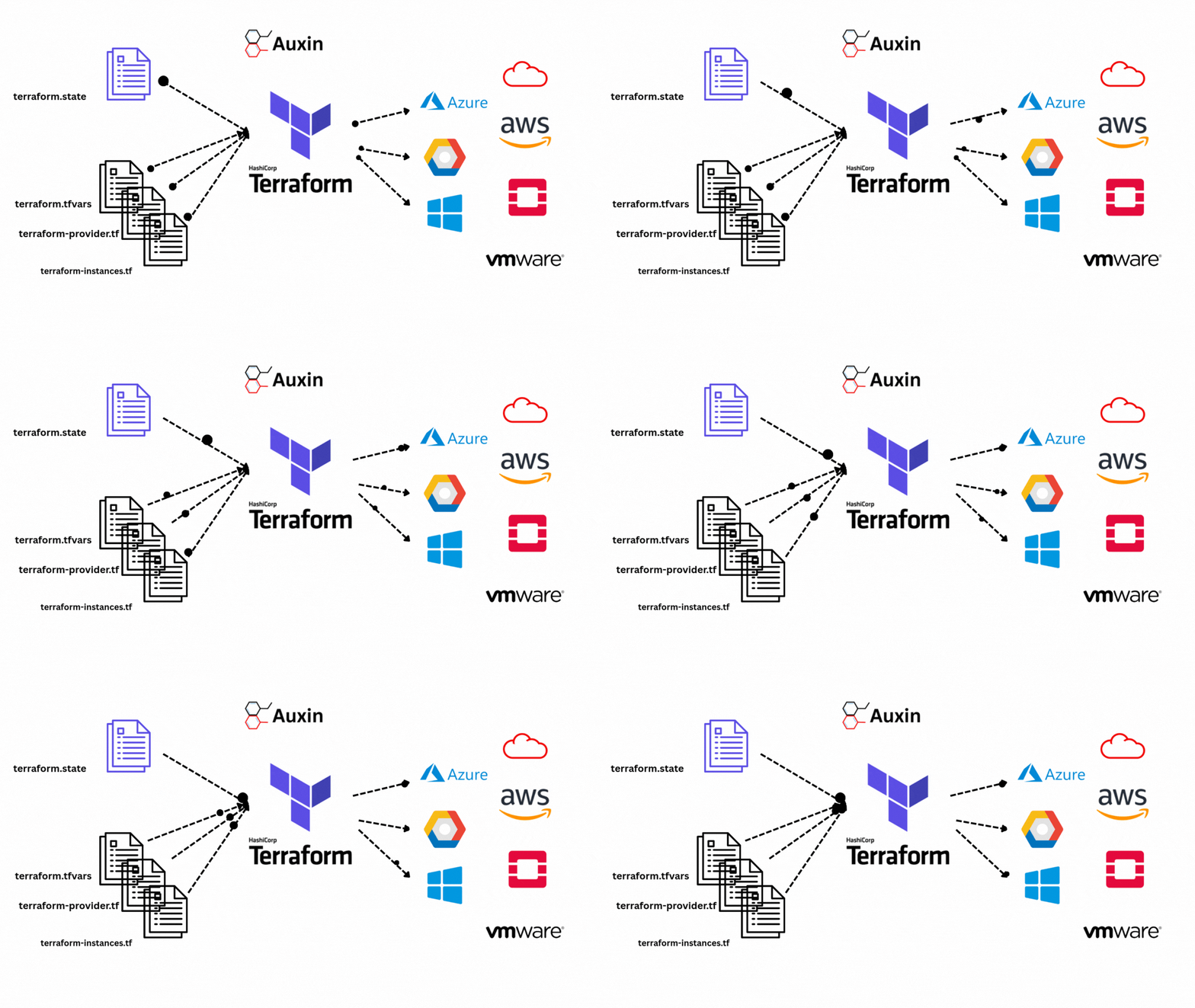
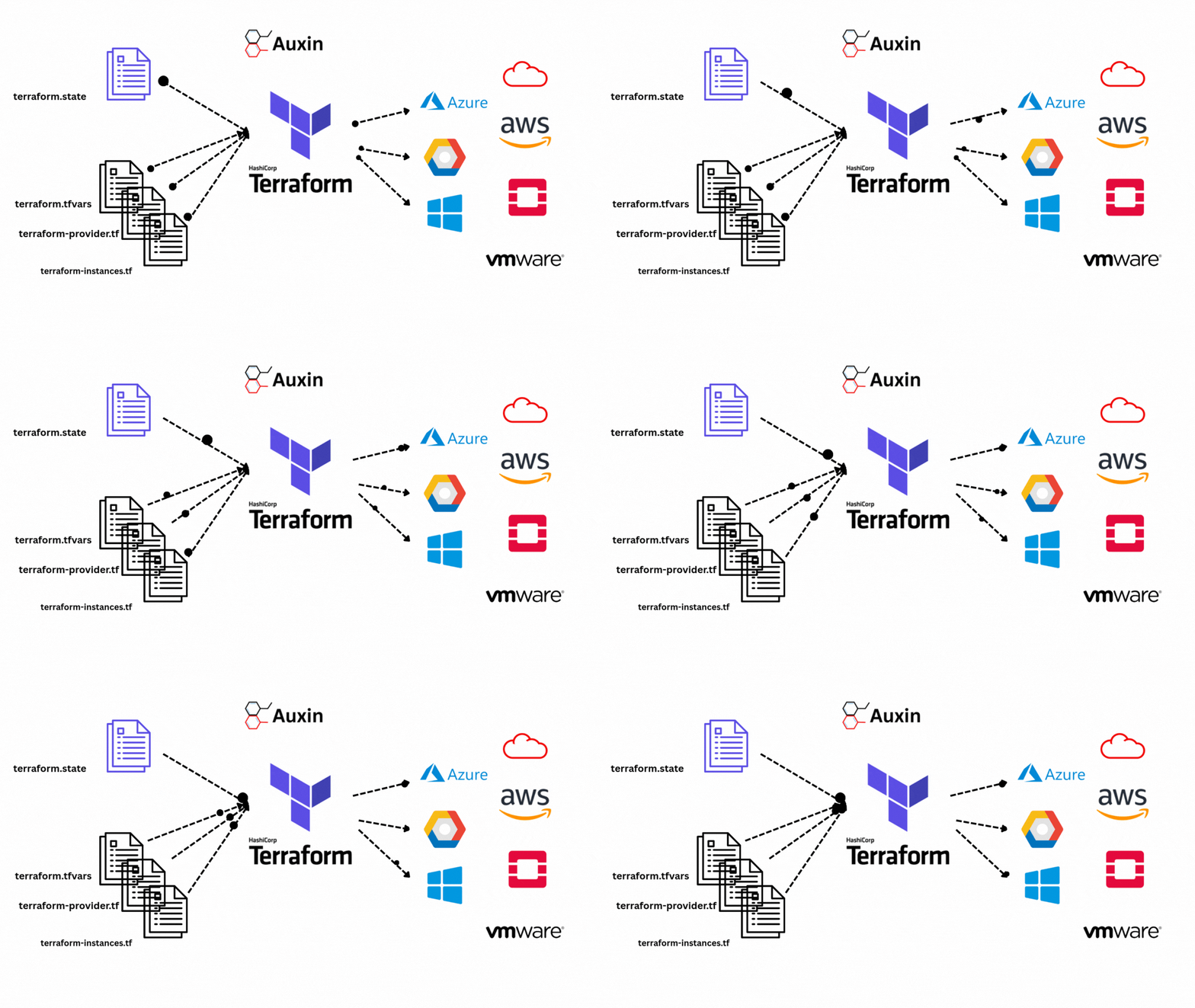
Infrastructure as Code (IaC) changes the experience at this point. IaC is the process of managing and provisioning infrastructure by using machine-readable configuration files rather than manual processes. Today, Terraform, developed by HashiCorp, is a popular IaC tool due to its simplicity, flexibility, and cloud-agnostic approach. It simplifies the process for teams to define, version, and automate infrastructure deployments.
What is Infrastructure as Code (IaC)?
“Infrastructure as Code,” which uses code-based configuration files to manage your underlying cloud infrastructure, functions similarly to how programmers write application code. Instead of manually configuring these resources using a graphical user interface (GUI), administrators produce configuration files that define networks, virtual machines, and databases. These files may be:
- Version-controlled: Allows for the tracking of changes over time and is stored in repositories such as Git.
- Tested and reviewed: Before deployment, infrastructure modifications can undergo peer review and validation.
- Automatically applied: Infrastructure modifications can be provisioned and updated automatically with CI/CD pipelines, improving productivity and lowering errors.
Why Choose Terraform for Infrastructure as Code?
Although there are several IaC tools available (such as CloudFormation for AWS, ARM templates for Azure, Pulumi, Ansible, etc.), Terraform offers the following clear benefits:
- Cloud-Agnostic: Facilitates hybrid and multi-cloud deployments by supporting over 1,000 providers with major cloud platforms (Azure, AWS, Google Cloud), SaaS products, and on-premises tools.
- Declarative Language: Makes use of the easily learnable and human-readable HashiCorp Configuration Language (HCL).
- Modules: Reusable modules, plugins, and integrations are widely available, indicating a robust community and ecosystem.
- Infrastructure Lifecycle Management: Facilitates declarative planning, implementation, modification, and destruction of infrastructure.
- State Management: Enables safe incremental changes and drift detection by keeping an updated map of deployed resources.
Basic Concepts in Terraform
Terraform’s power can be accessed by comprehending its basic components:
- Providers: Link cloud services to Terraform. For instance, aws for AWS and azurerm for Azure.
- Resources: Describe the various parts of the infrastructure, such as storage accounts, network interfaces, and virtual machines.
- Modules: Allow you to abstract and share configurations by grouping resources for organizational clarity and reusability.
- State File: To maintain Terraform’s synchronization with actual infrastructure, a JSON file that documents the deployed state is used.
- Variables: Give configurations flexibility by parameterizing and generalizing them.
- Outputs: After deployment, outputs enable you to retrieve and present pertinent data.
How to Set Up Terraform and Use It with Azure
One popular infrastructure automation tool that makes code-based resource definition and management possible for cloud computing is Terraform. The first step is to install Terraform on your local computer and set it up to work with your cloud provider, such as Azure. Because of Auxin Security’s expertise in cloud cybersecurity, these automated provisioning procedures are protected by effective, tailored measures, assisting businesses in protecting identity data and upholding compliance at all times.
Installing Terraform
Download Terraform:
Go to the downloads section of the official Terraform website. Download the compressed archive after selecting the version that works with your operating system (Windows, macOS, or Linux).
Extract the Files: Move the downloaded archive’s contents to a specific location on your PC. Create a directory, such as C:\terraform on Windows or /usr/local/bin/terraform on Unix-based systems.
Add to System PATH: Include the directory containing the Terraform executable in your system’s PATH environment variable to use Terraform from any terminal or command prompt window. By taking this step, you can execute the Terraform command globally without having to provide the entire path.
Verify the installation:
Launch a command prompt or terminal and enter:
Terraform -version
A successful installation should be confirmed when the installed version of Terraform appears.
Step 1: Setting Up Terraform to Manage Azure Resources
Terraform will now be used to build and administer Azure infrastructure. In this example, a Resource Group—a logical container for Azure assets—is created.
- Start by configuring an Azure service. Terraform needs to authenticate with Azure to manage resources. Using the Azure Portal, do the following:
- After choosing Azure Active Directory > App registrations, click New registration.
- Select accounts from within your organization and type a meaningful name (e.g., TerraformApp).
- After registering, go to Certificates & Secrets and create a new client secret. Keep this secret safe because it will only be shared once.
- Copy the Application (client) and Directory (tenant) IDs from the Overview page.
- Select your subscription by navigating to Subscriptions > Access Control (IAM).
- Assign the Contributor role to your registered application.
Step 2: Create Terraform Configuration Files
Create a project folder and include the Terraform configuration files listed below.
main.tf
Specifies the Resource Group to be created and the Azure provider.
provider "azurerm" {
  features {}
client_id       = var.client_id
  client_secret   = var.client_secret
  subscription_id = var.subscription_id
  tenant_id       = var.tenant_id
}
resource "azurerm_resource_group" "example" {
  name     = var.resource_group_name
  location = var.location
}
output "resource_group_name" {
  value = azurerm_resource_group.example.name
}

variables.tf
Enables flexible configurations by declaring input variables.
variable "client_id" {
  description = "Azure Client ID"
}
variable "client_secret" {
  description = "Azure Client Secret"
  sensitive   = true
}
variable "tenant_id" {
  description = "Azure Tenant ID"
}
variable "subscription_id" {
  description = "Azure Subscription ID"
}
variable "resource_group_name" {
  description = "Name of the Resource Group"
  default     = "terraform-demo-rg"
}
variable "location" {
  description = "Azure Region"
  default     = "East US"
}

Terraform.tfvars
Here, enter your Azure login information and configuration settings. Put absolute values in place of placeholders.
client_id           = "YOUR_CLIENT_ID"
client_secret       = "YOUR_CLIENT_SECRET"
tenant_id           = "YOUR_TENANT_ID"
subscription_id     = "YOUR_SUBSCRIPTION_ID"
Step 3: Start the Terraform Initiative
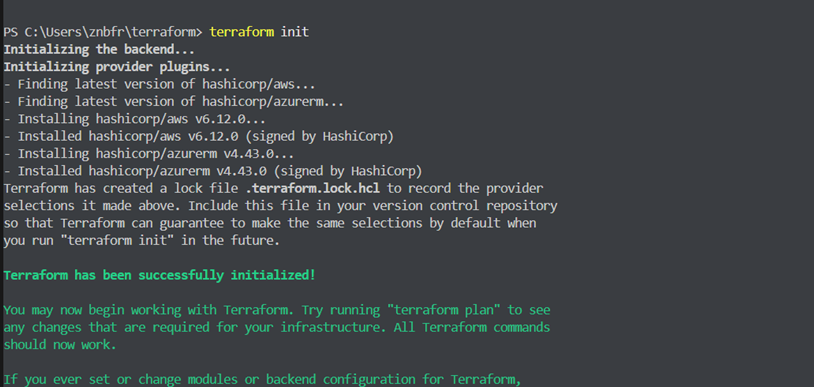
Open a terminal, go to the directory for your project, and type:
terraform initThis command sets up your environment, downloads the Azure provider plugin, and initializes Terraform.
Step 4: Preview the Planned Changes
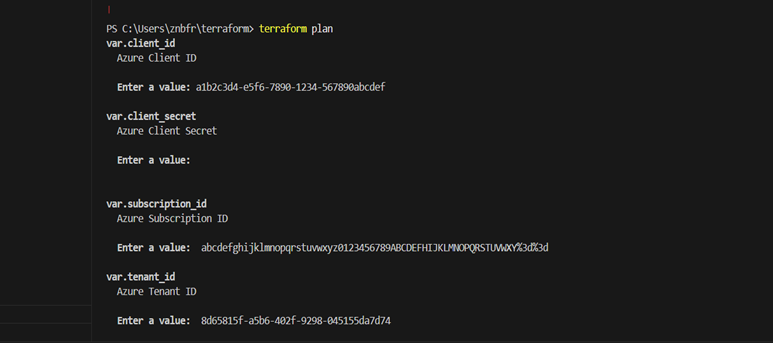
Check out what Terraform will do before applying:
Terraform planMake sure the output reflects your intentions by carefully reviewing it.
Step 5: Verify the Azure Portal
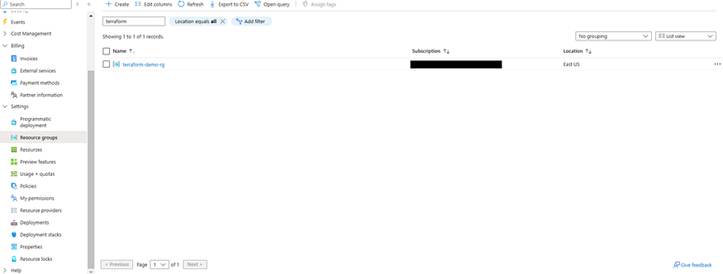
Verify that your new Resource Group has been created by logging into the Azure Portal and then selecting ‘Resource Groups’.
Step 6: Clean Up Resources (Optional)
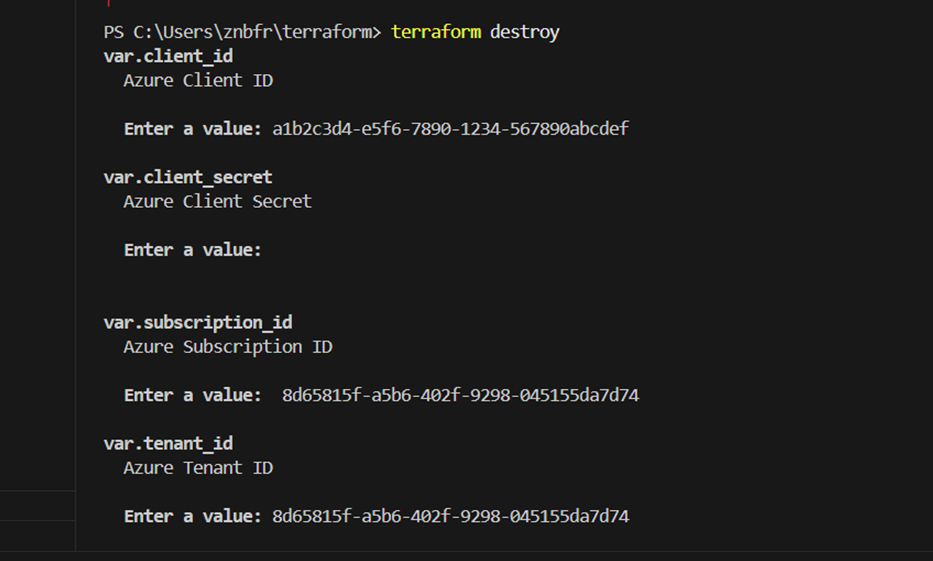
When your resources are no longer required, you can get rid of them using:
terraform destroyVerify that you are deleting every managed infrastructure that your Terraform configuration has created.
Let’s Wrap Up
Automated Infrastructure as Code (IaC) will be necessary for scalable, agile cloud deployments by 2025 to simplify resource management and reduce errors. The cloud-agnostic approach of Terraform enables consistent infrastructure setup across multiple environments, thereby increasing team productivity. With the help of professionals like Auxin Security, which guarantees strong cloud cybersecurity and compliance, businesses can confidently utilize safe and effective infrastructure automation to accelerate their digital transformation.